Create your Google Play developer account
Registering with the Google Play Console, required to publish your app on the Play Store.
Your Google account is ready. To publish on the Play Store, you now need a Google Play developer account. It's Google's official registration for app creators: it costs $25 once (no annual subscription) and gives access to the Google Play Console, where your app is managed.
Already registered?
Don't pay again. Jump to Verify your account.
Individual or organization?
When you register, Google asks you to choose an account type:
- Individual (recommended to start): the simplest path. Your legal name will be verified.
- Organization: choose this to publish on behalf of a company. It requires a D-U-N-S number (a free business identifier that can take up to 30 days to obtain) — without it, you can't create an organization account.
If you're unsure, start as an Individual.
Register
What to prepare
This step involves a one-time $25 payment and an identity verification (legal name, address, supporting document depending on your region).
Open registration
Go to play.google.com/console/signup and sign in with your Google account (the one you secured in the previous step).
Choose the account type and pay
Choose Individual (or Organization), enter your real legal information, accept the developer agreement, then pay the $25.
Verify your identity
Google confirms your identity (name, address, contact — sometimes an ID document). Use your exact legal information to avoid delays.
New: testing required before production
For an Individual account created after November 13, 2023, Google requires a closed test with at least 12 testers, opted in continuously for at least 14 days, before you can apply for production access. It's covered in detail on the Testing & release page. (Organization accounts and older accounts are exempt.)
Verify your account
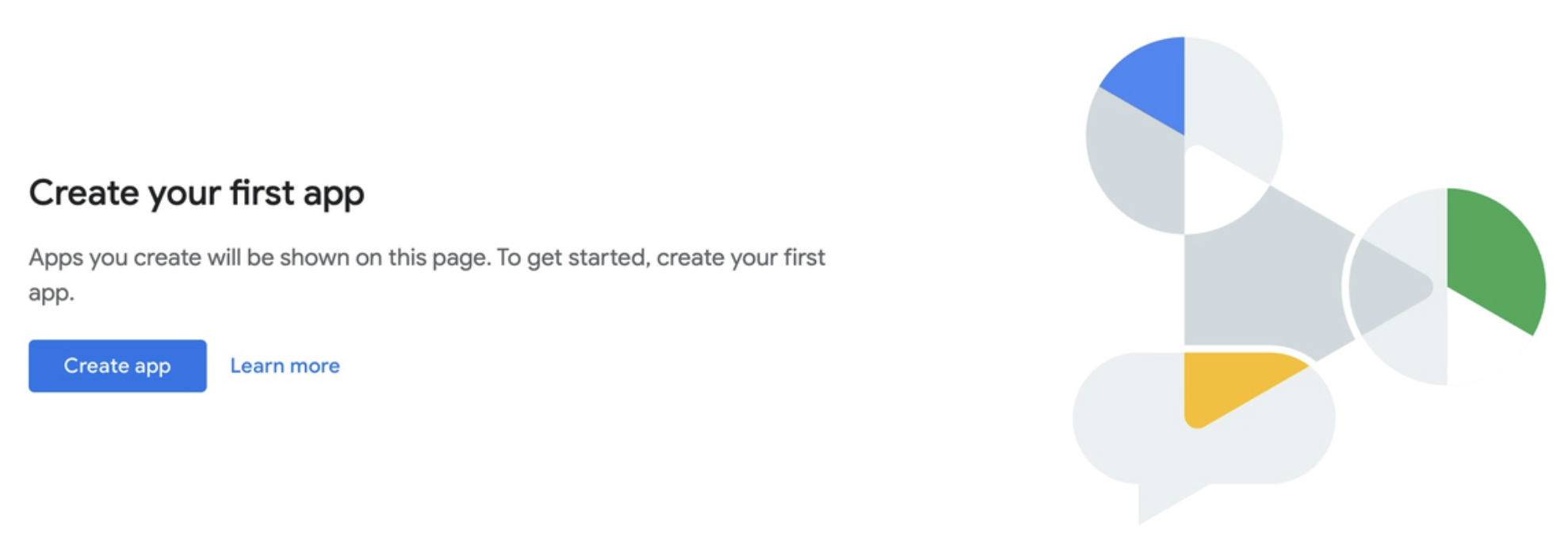
Once registration is approved, open the Google Play Console. If you reach the dashboard (the Create app button is available), your developer account is active — that's where the next steps will take place.
What's next?
Your developer account is ready. You can now create the API access that lets Releasely publish your apps for you.