Create an Apple Account
The very first step to publish on the App Store — create a free Apple Account and turn on two-factor authentication.
To publish an app on the App Store you need two things: an Apple Account (free) and then an Apple Developer Program membership (paid, covered in the next step). This page covers the first: creating your Apple Account and securing it.
Already have an Apple Account?
No need to create a new one. Jump straight to Check two-factor authentication — that's the only thing that truly matters for what's next.
Why this account?
Your Apple Account (formerly "Apple ID") is your identity with Apple. It's what gives you access to App Store Connect, the place where your app will be managed. Two-factor authentication (a code sent to your phone every time you sign in) is required to join the developer program in the next step, so we turn it on right away.
Tip: use a dedicated address
For a professional project, many people prefer a dedicated email for the app (for example
apps@yourdomain.com) rather than their personal Apple Account. It's easier to manage if others
join you later.
Create the account
Open the sign-up page
Go to account.apple.com and click "Create Apple Account".
Enter your details
Provide your first and last name, your country or region, your date of birth, then an email address (it becomes your sign-in name) and a strong password.
Verify your phone and email
Enter a trusted phone number: Apple sends a code by SMS for you to type back. Then check your inbox and enter the code received to confirm your address.
Your Apple Account is created. You can now sign in at account.apple.com.
Check two-factor authentication
Two-factor authentication is on by default these days, but let's confirm it — it's required for the next step.
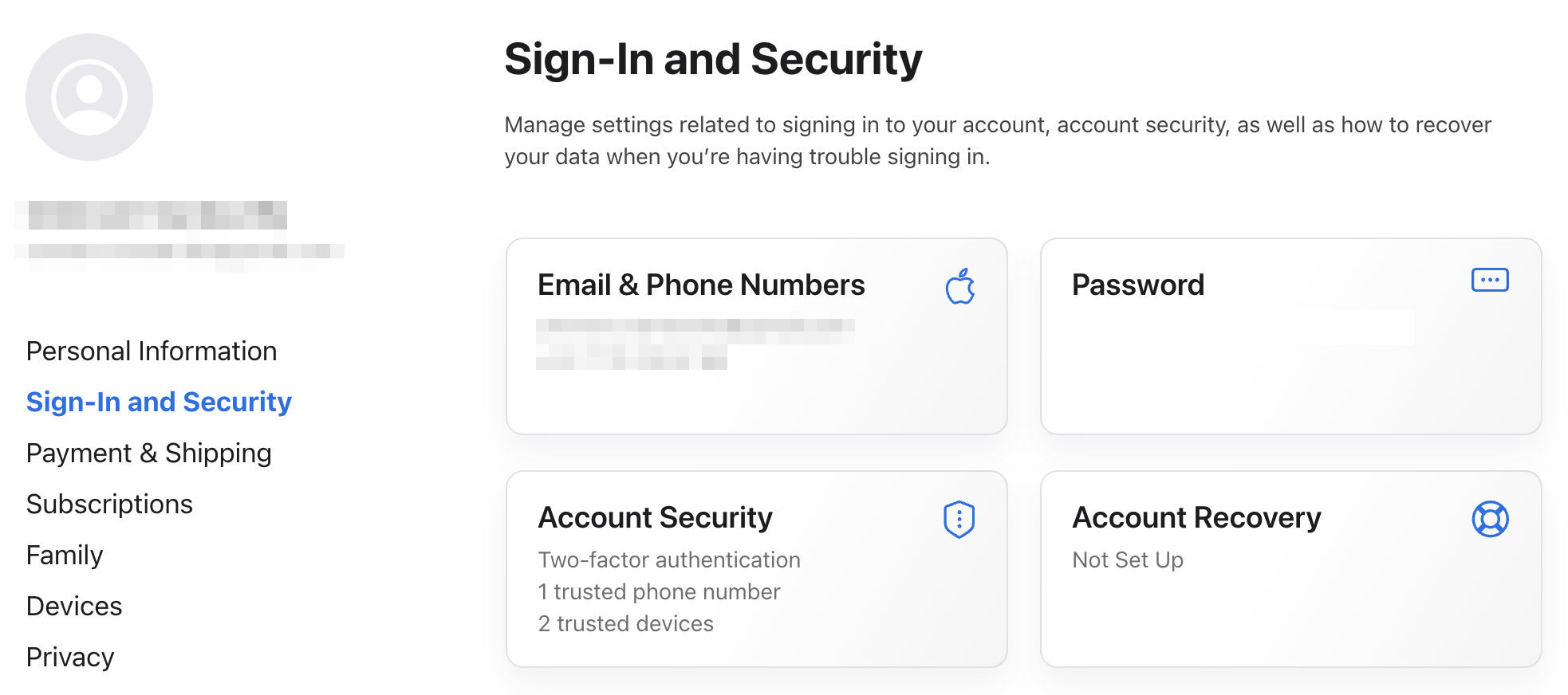
Open "Sign-In and Security"
Sign in at account.apple.com, then open the Sign-In and Security section.
Confirm it's active
This section shows a trusted phone number and your trusted devices. Their presence confirms that two-factor authentication is active — you're all set.
If you see no trusted phone number or devices
Then two-factor authentication isn't active yet: Apple will show an option to turn it on. Do it before continuing — without it, enrolling in the Apple Developer Program (next step) won't be possible.
What's next?
Your Apple Account is ready and secured. The next step is to join the Apple Developer Program, the membership that actually lets you publish on the App Store.