Register your app
Create your app's record on Apple's side so its Bundle ID exists and matches the one used in Releasely.
Before configuring Releasely, your app must exist on Apple's side. This registration creates the Bundle ID — your app's unique identifier. Releasely will use it, and verifying your credentials will fail if the Bundle ID doesn't match a registered app.
It happens in two parts: register the identifier (App ID) in the developer portal, then create the app in App Store Connect.
The Bundle ID is permanent
The Bundle ID uses reverse-DNS format (com.yourcompany.yourapp). It is unique and
permanent: you can't reuse it for another app or change it later. Choose the one you'll
actually use.
App already registered?
No need to start over. Just check its Bundle ID and move on to the next step.
Part 1 — Register the identifier (App ID)
Open the Identifiers list
Go straight to Apple's Identifiers page. (You can also reach it from developer.apple.com/account by clicking Identifiers under Certificates, IDs & Profiles.)
Create an App ID
Click the +, choose App IDs, then App, and Continue.
Enter the Bundle ID
Add a Description (an internal name to find it again), choose the Explicit type, then enter
your Bundle ID (for example com.yourcompany.yourapp). Leave Capabilities at their
defaults, then click Register.
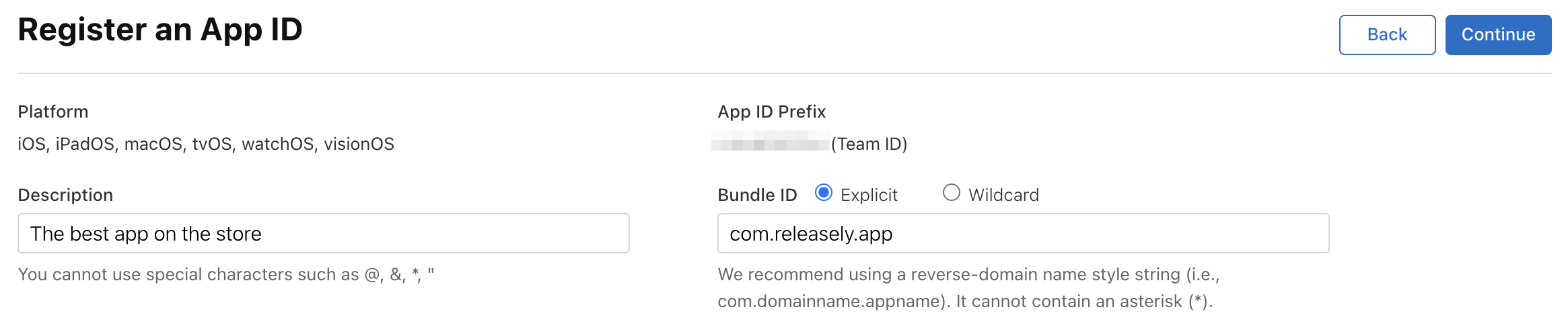
Note your Bundle ID: you'll reuse it in part 2, then in Releasely.
Scratchpad: Bundle ID
Available any time via the
Part 2 — Create the app in App Store Connect
Open "New App"
On appstoreconnect.apple.com, open Apps, click the +, then New App.
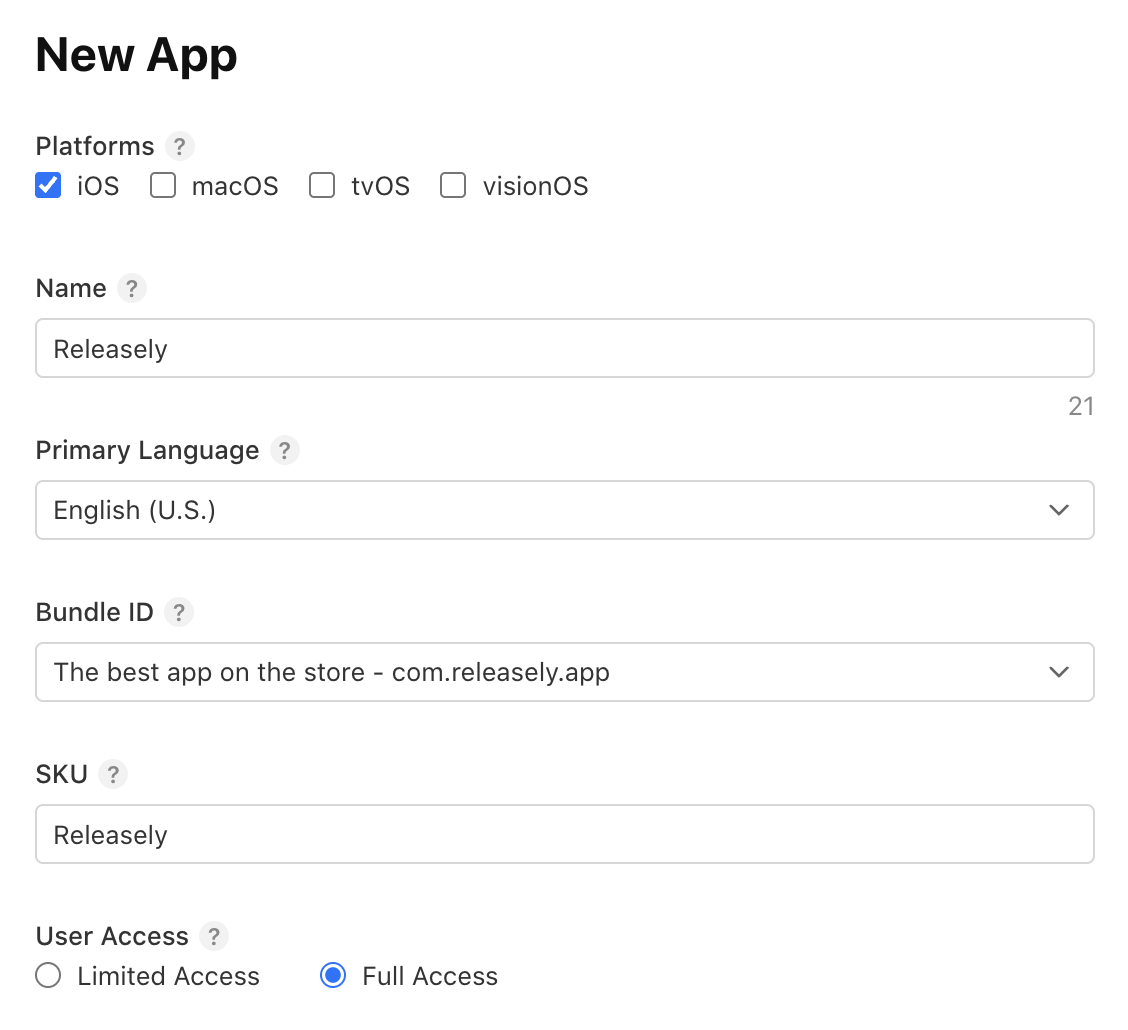
Enter the details
Choose the platform (iOS), an app name (the one shown on the App Store, unique across the whole store), the primary language, the Bundle ID created in part 1, a SKU (a free internal reference, not public and not editable — for example your app's name), and leave User Access on Full Access. Click Create.
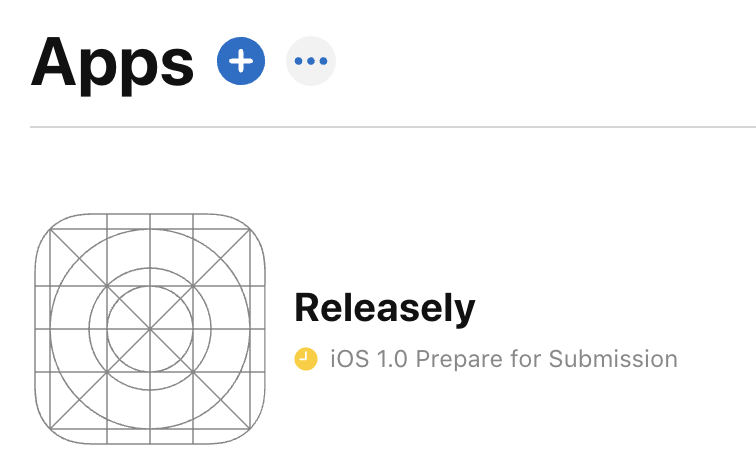
Your app then appears in the Apps list, ready to be prepared.
If the name is rejected
An app's name is unique across the entire App Store. If it's already taken, Apple rejects it: choose another one.
What's next?
Your app exists on Apple's side with its Bundle ID. Next, create the App Store Connect API key that lets Releasely upload your builds.